Developer Docs
English


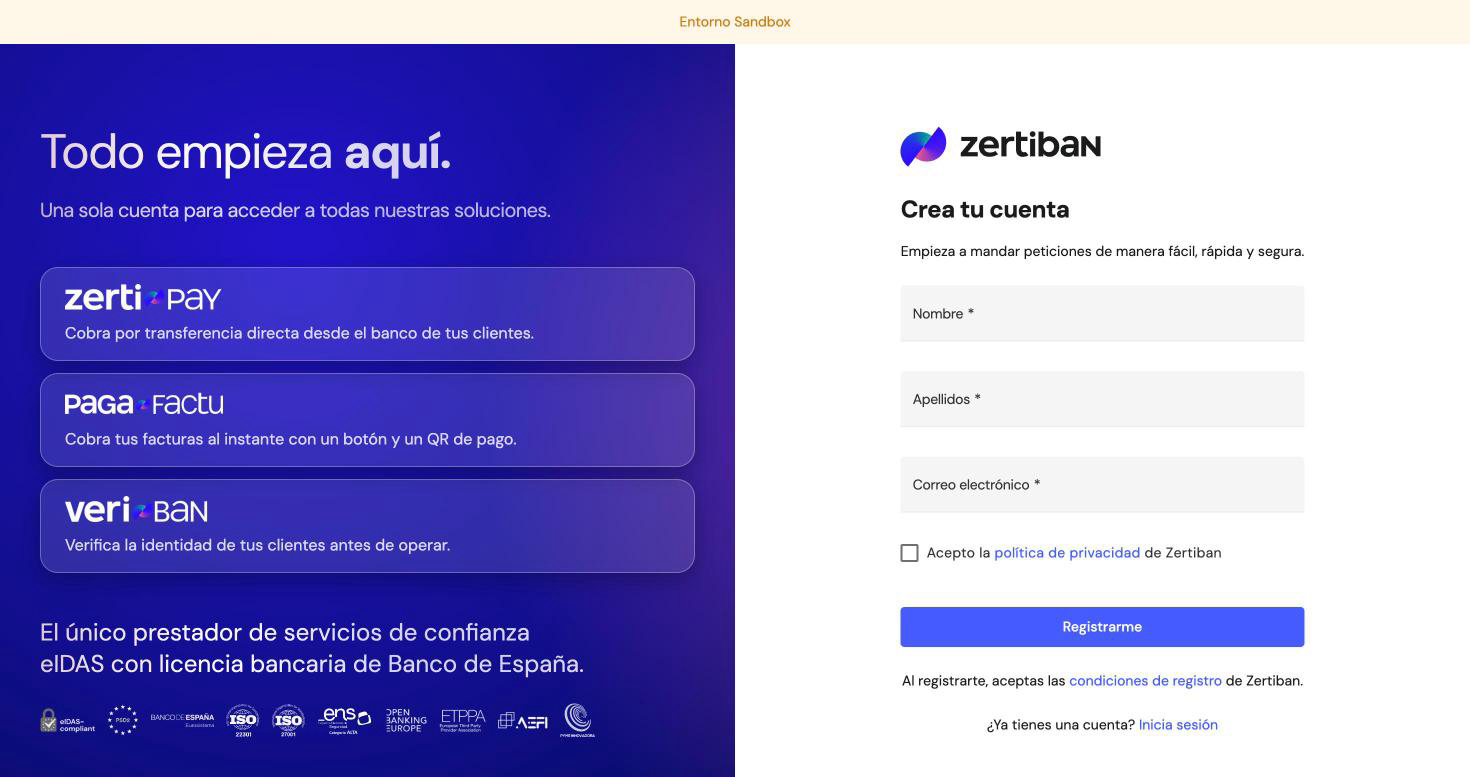
Register your user account and complete your organisation's onboarding.
Signing up with Zertiban is done through the following steps:
Register with Zertiban: A single user account gives access to all Zertiban solutions. To create it, you only need to enter your first name, surname and email address, and accept the privacy policy.
Access the Zertiban login: After completing the registration form, the user will receive an email to activate their account. Once activated, the user can log in and start their organisation's onboarding, or access the organisation they have been invited to (see Invite a user).
In sandbox, every screen shows the Entorno Sandbox (Sandbox environment) banner at the top.
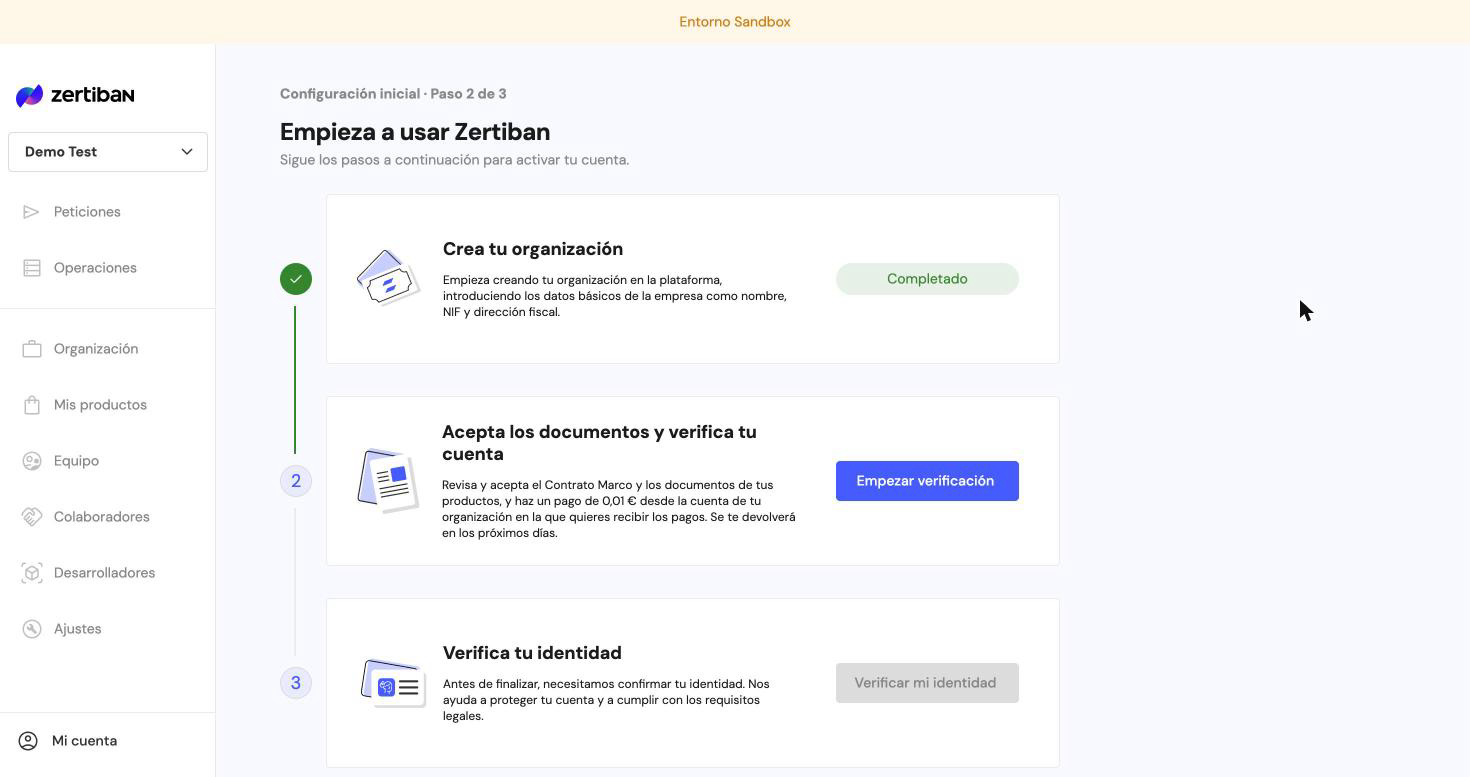
After logging in, the dashboard shows the Empieza a usar Zertiban (Get started with Zertiban) screen with the three initial setup steps. Each step is unlocked once the previous one is complete:
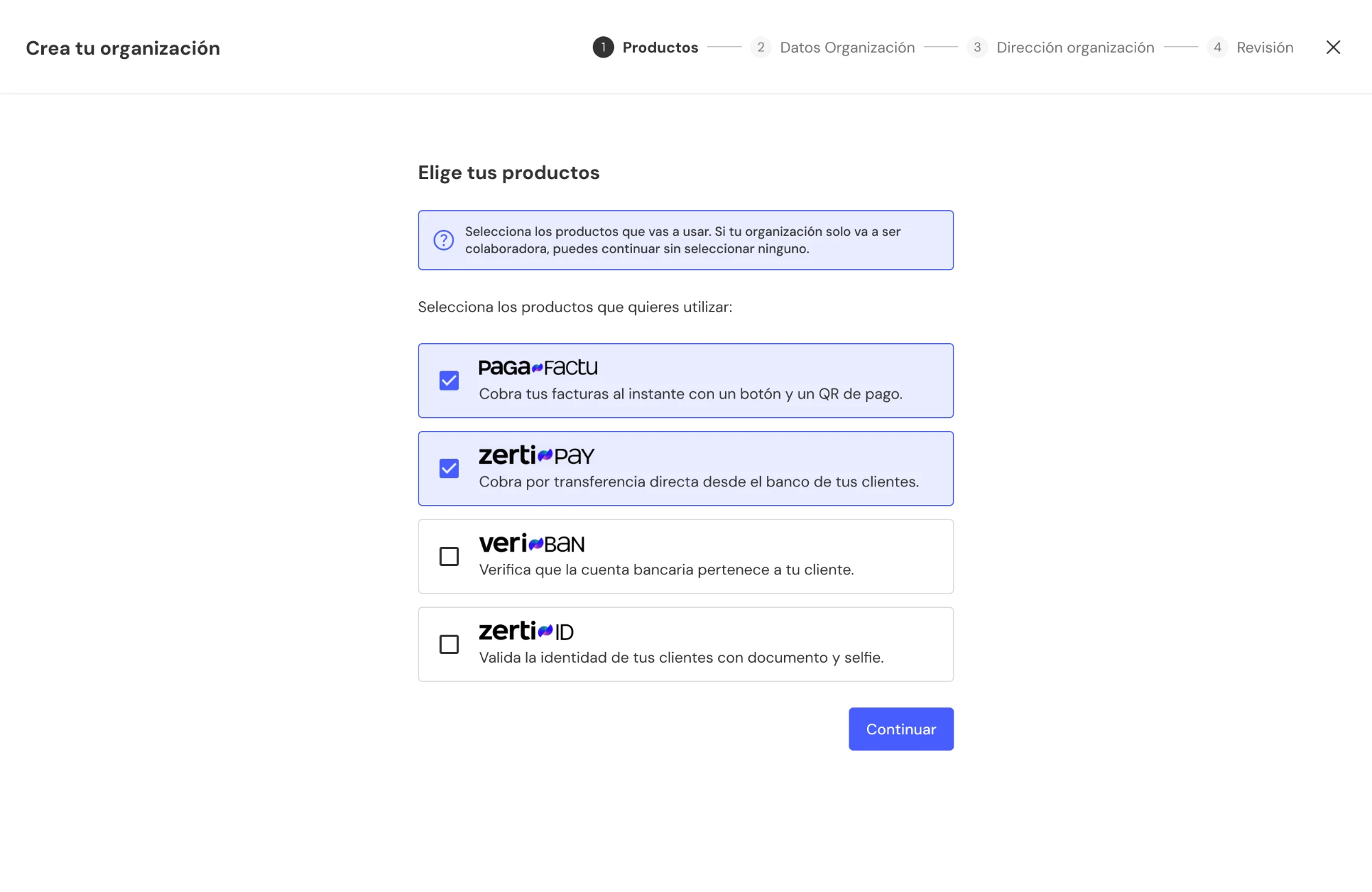
The Crea tu organización (Create your organisation) wizard is completed across four screens.
Select the products you are going to use: PagaFactu, ZertiPay, VeriBan or ZertiID. If your organisation will only act as a collaborator (see Partners and Agents), you can continue without selecting any. You can review them later under Mis productos (My products).
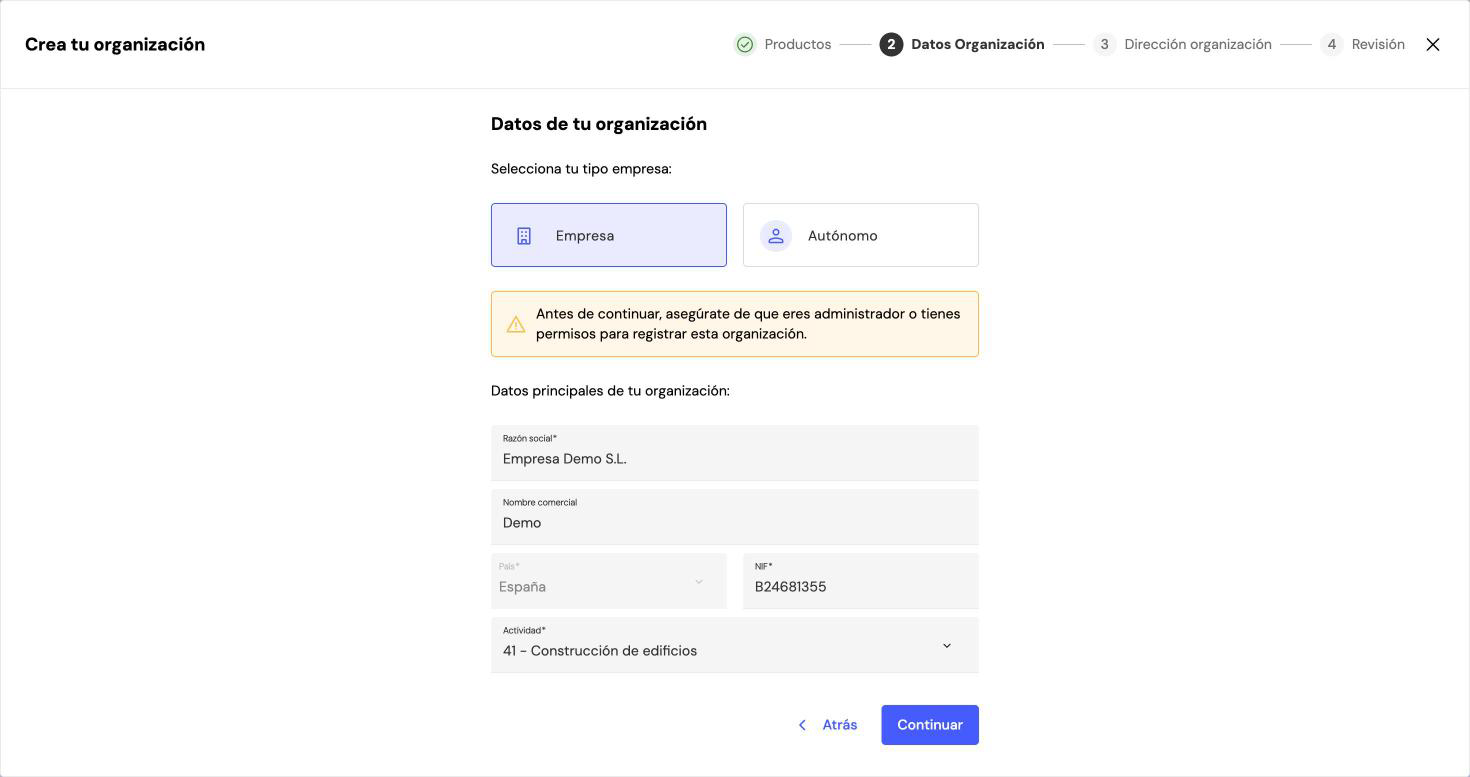
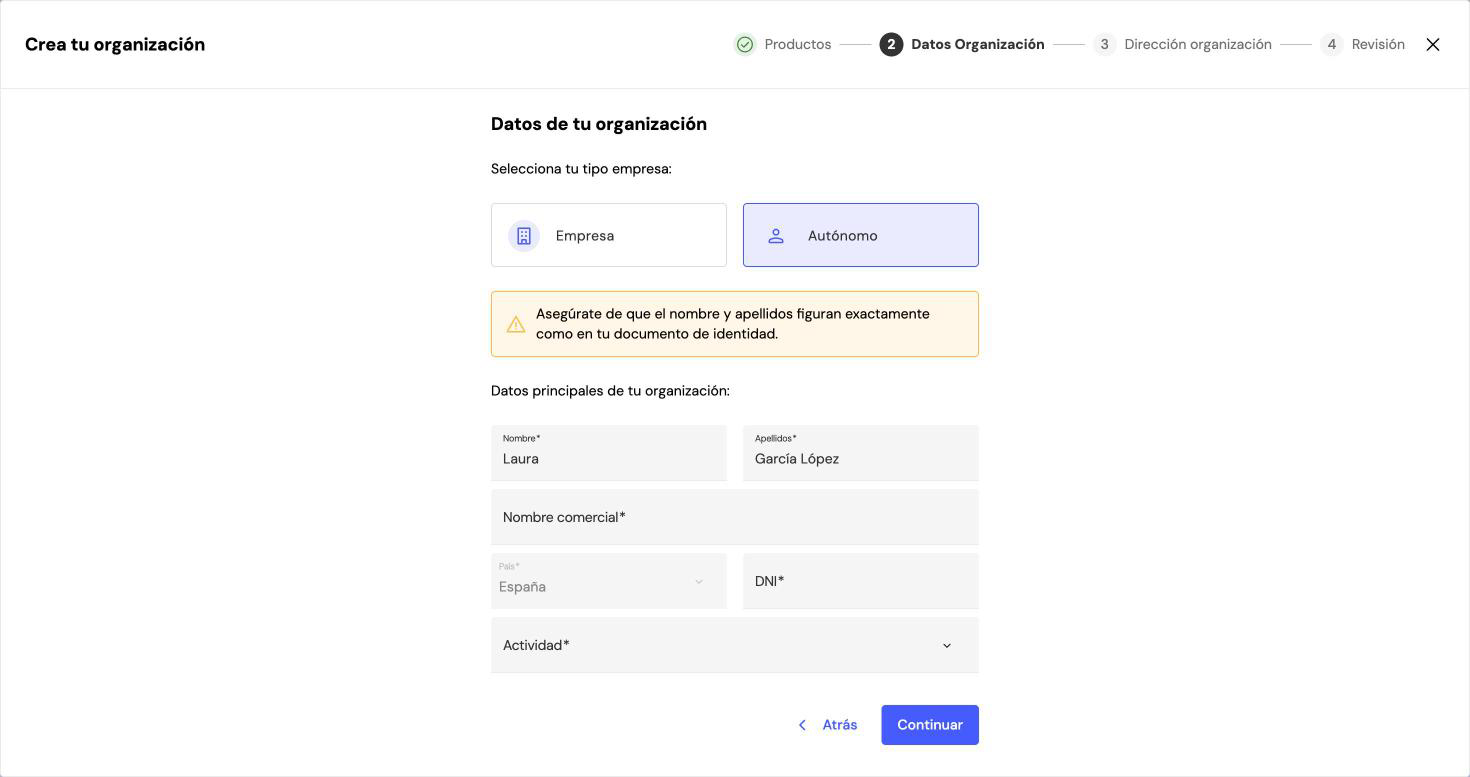
Choose whether the organisation is a Company or a Sole Trader:
The country is fixed to Spain. The activity is chosen from the business activities catalogue and can be searched by name or by CNAE code.
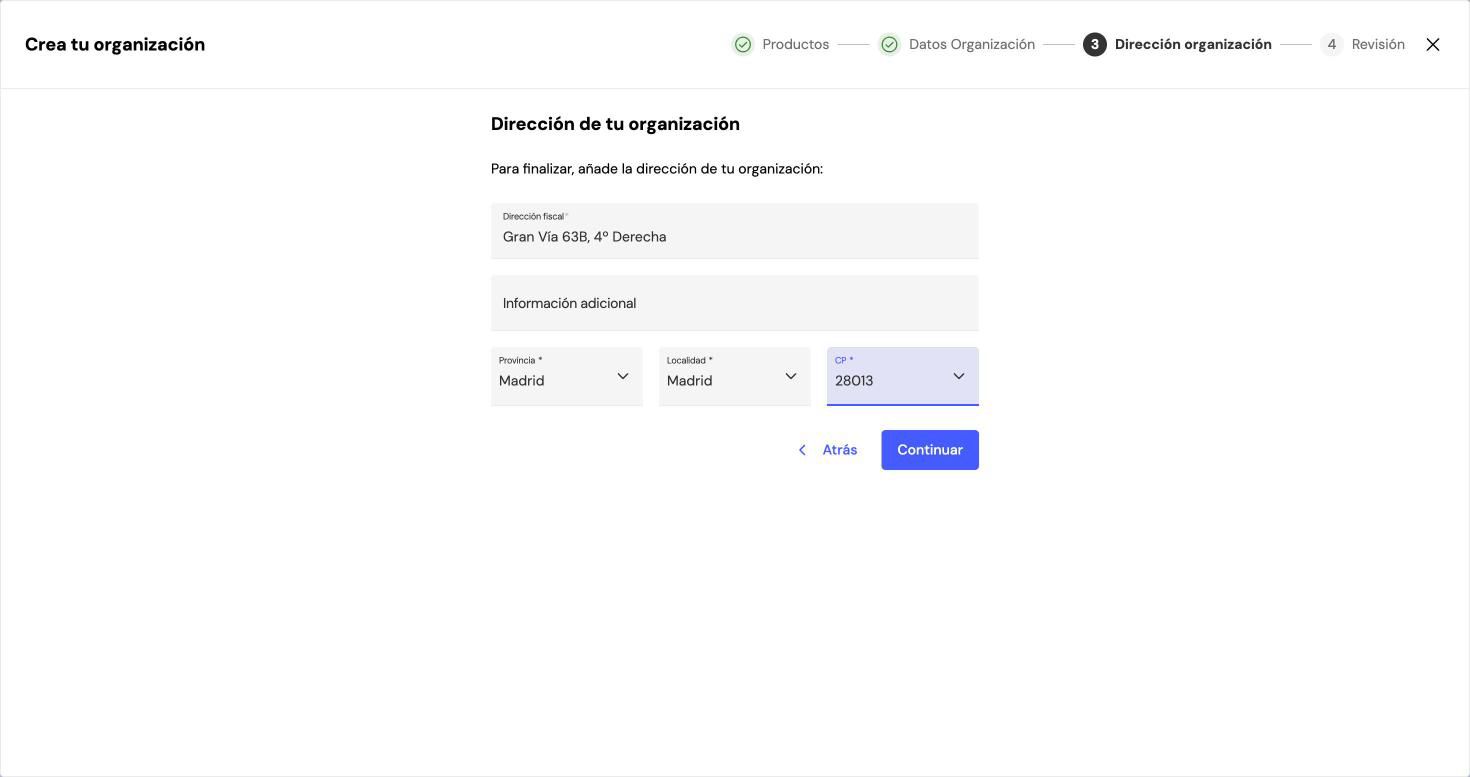
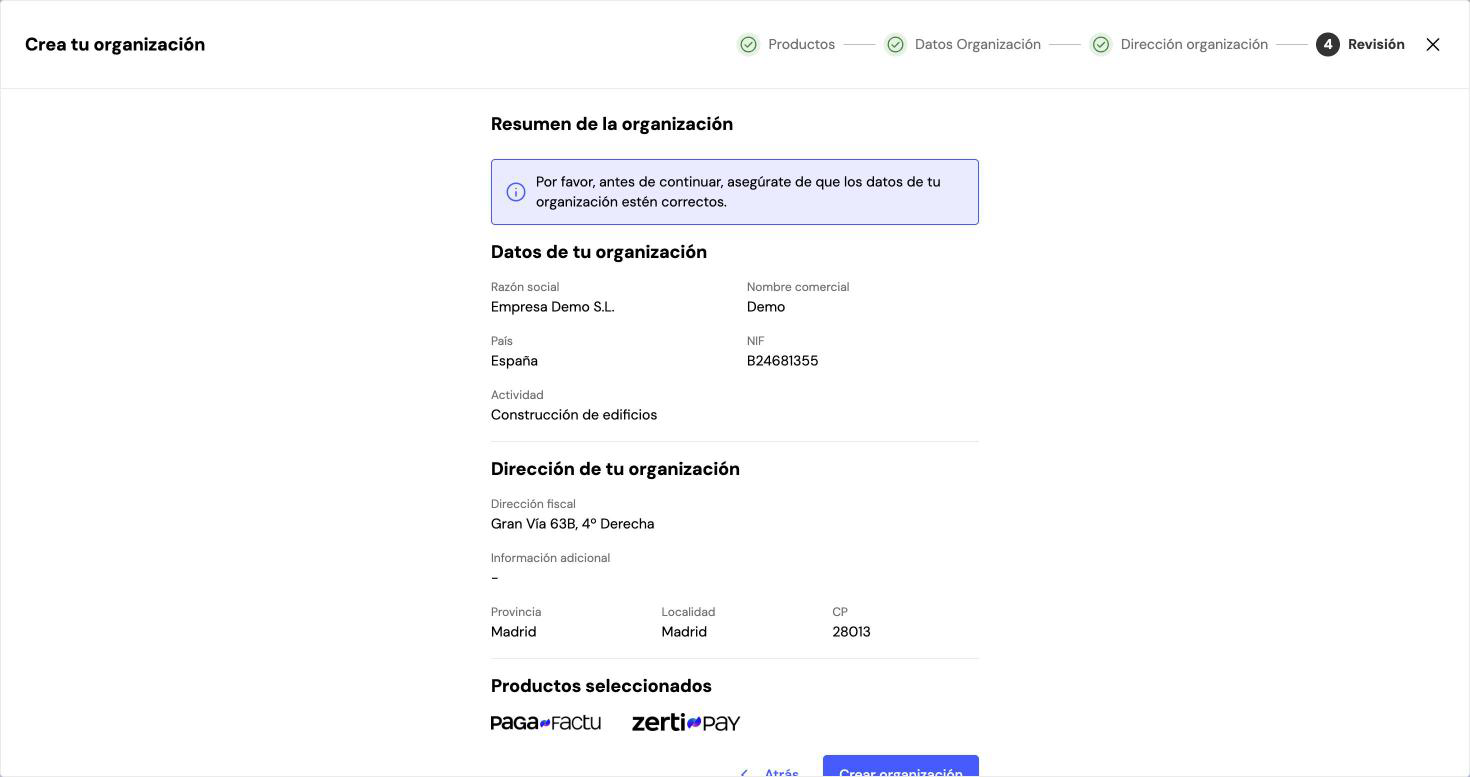
Add the organisation's registered address (address, province, town and postcode) and review the summary before clicking Crear organización (Create organisation). Once saved, you will be taken to the dashboard with your businessUuid already assigned.
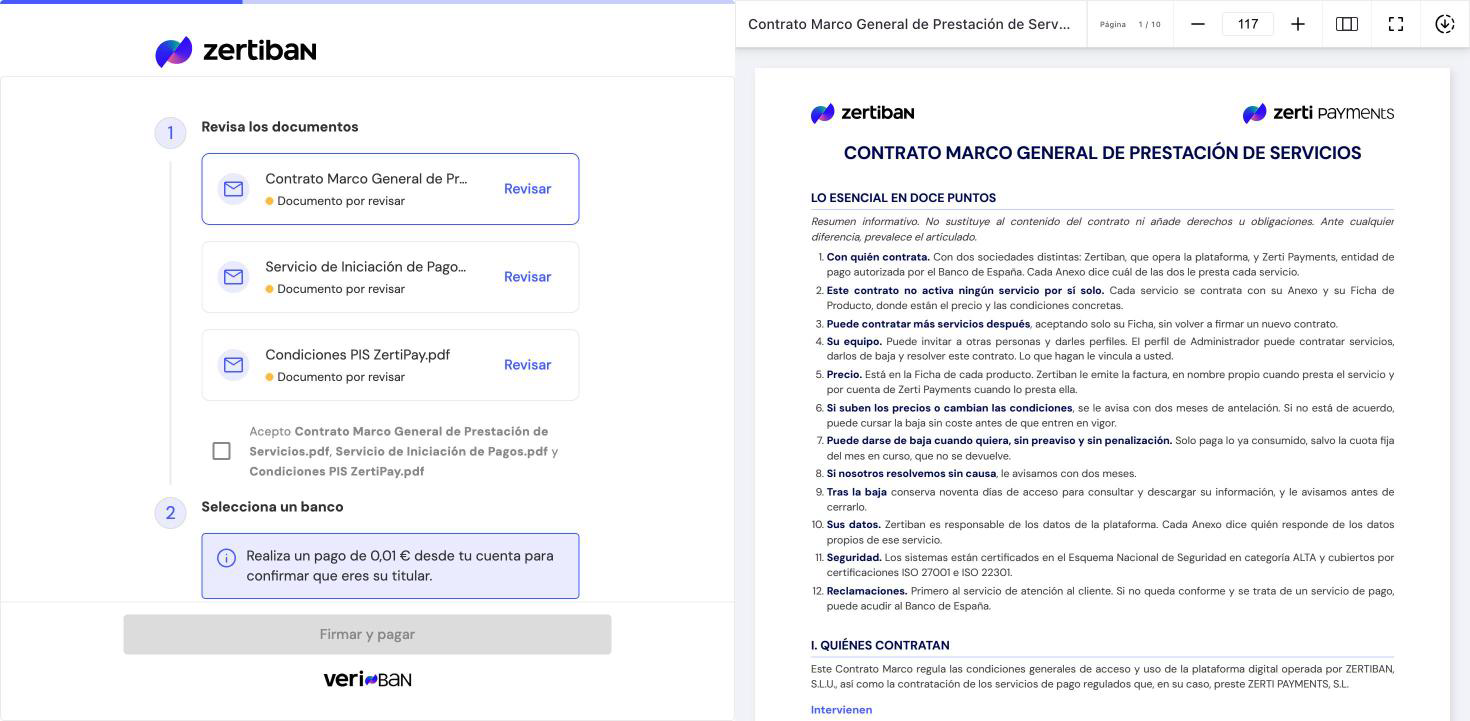
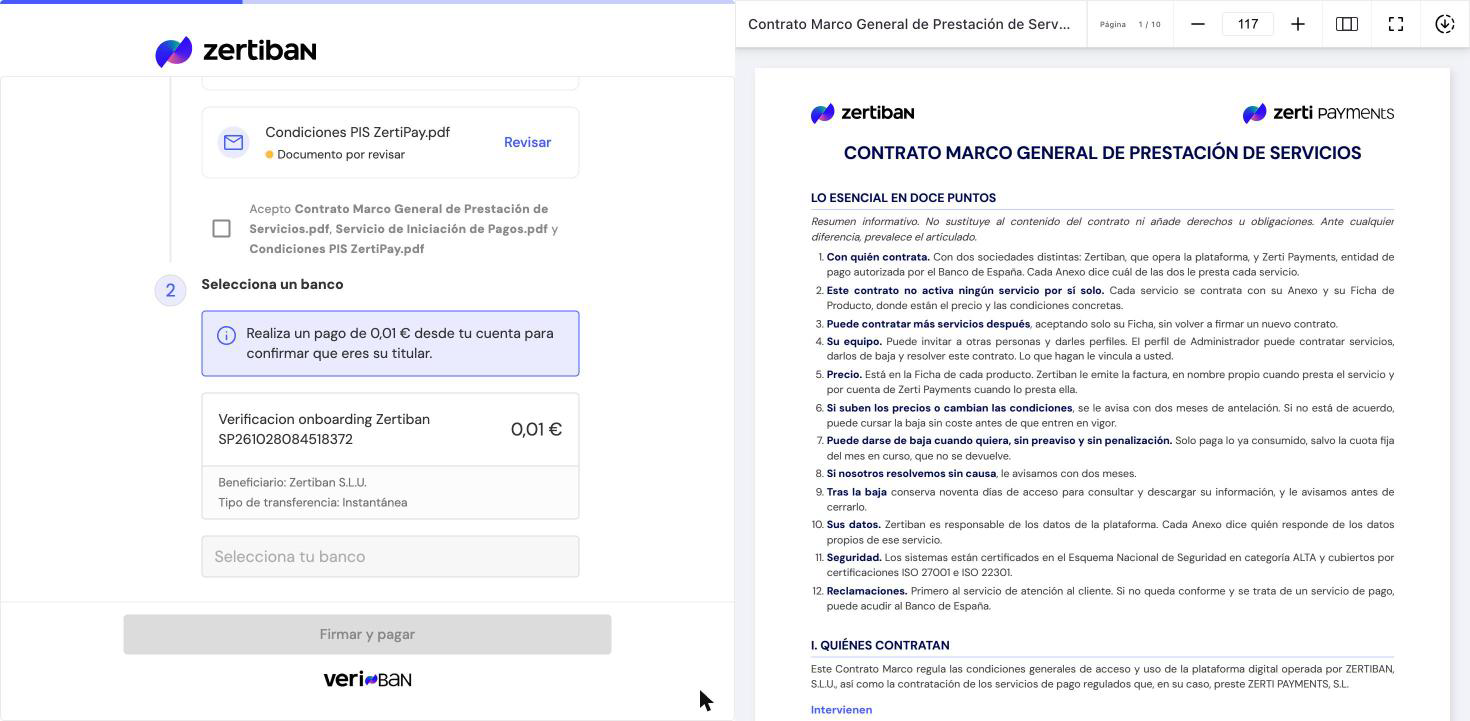
Clicking Empezar verificación (Start verification) opens a two-part flow:
Click Firmar y pagar (Sign and pay) to complete the step. Once verification is complete, the dashboard shows the associated creditorAccountUuid and the third step becomes available.
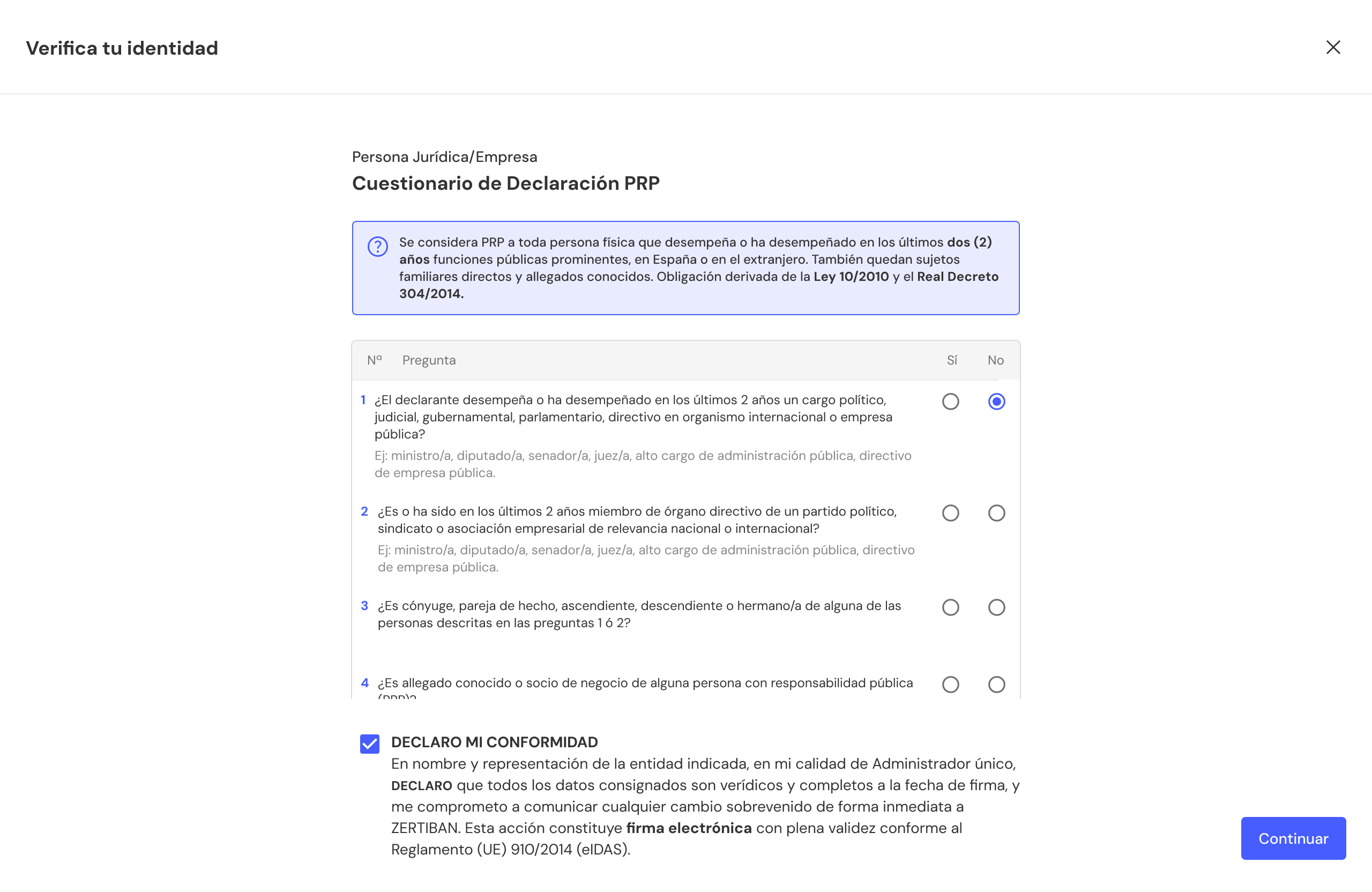
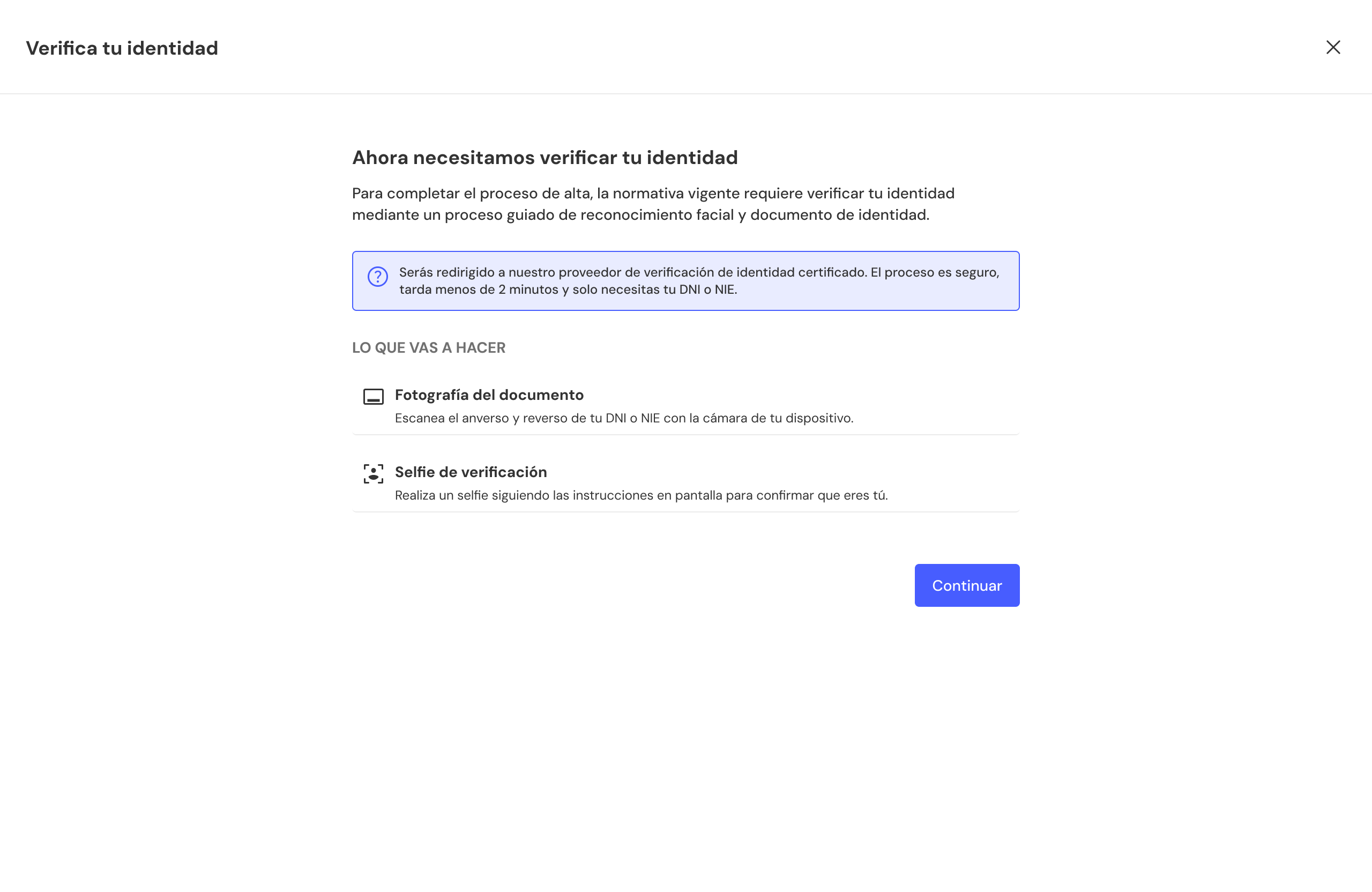
The user must complete the PEP (Politically Exposed Person) questionnaire. Finally, regulations require identity verification through a guided facial recognition and identity document process.
Write to [email protected] with:
businessUuidhttps://your-erp.com/webhooks/zertiban)Zertiban registers the endpoint and sends you the webhookSecret to validate HMAC signatures.